
You sit down at your desk, put headphones on, and start creating that next Pro Tools masterpiece… but your Waves plugins are missing.
They just vanished into thin air. Frustrating, right? I’ve been there, and I know it is not how you want to start your studio session. But fear not; we will solve this mystery together.
The Mysteries of Missing Plugins
Here’s the thing: Pro Tools is a picky DJ. Like that high-maintenance friend who only eats at one specific restaurant, Pro Tools only works with plugins in AAX format.
If your Waves plugins are in VST or VST3 format, they’re trying to crash a party they weren’t invited to. And Pro Tools? It’s not letting them in. So, the first step is to ensure that your Waves plugins are formatted correctly.
But even if they’re AAX, they might still be hiding. Why? Because sometimes, Pro Tools doesn’t know where to look for them. Think of it like this: your plugins are in the house, but Pro Tools is checking the wrong rooms. The key is to guide Pro Tools to the right folder, we’ll get to that in a minute.
Oh, and let’s not forget about WavesShell. If you’ve ever seen this file and thought, “What on earth is this?” you’re not alone. WavesShell is basically the middleman between your DAW and your Waves plugins. If it’s not working correctly, your plugins won’t show up, even if everything else is fine.
Step 1: Are They Installed in the Right Spot?
Before we dive into rescanning or tweaking settings, let’s make sure your plugins are actually installed where they’re supposed to be. Think of this as checking to see if your bandmates are even in the building before you start soundcheck.
- For Windows Users
Your Waves plugins should be hanging out in C-Program Files (x86)-Waves-Plug-Ins V15 (or whatever version you’re using). Open that folder and look for files named after your plugins, like [PluginName].bundle.
If they’re not there, well, that’s problem number one. It’s like expecting your drummer to show up for rehearsal only to find out they’re still at home. You’ll need to reinstall them using Waves Central.
- For Mac Users
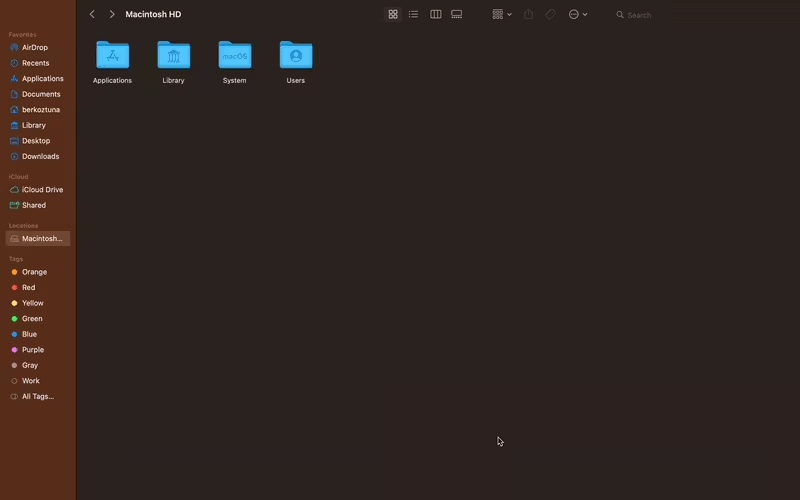
On macOS, your plugins should be located in Macintosh HD-Applications-Waves -Plug-Ins V15. Same deal: if you don’t see them, they’re not installed correctly. Fire up Waves Central and reinstall them.
- A Quick Reinstall Tip
If you do need to reinstall, use Waves Central’s “Complete Waves Cleanup” option before you try again. It’s like wiping the slate clean before starting fresh.
Once you’ve done that, install your plugins again and make sure they’re going to the correct folder. Trust me, this little step can save you hours of frustration later on.
Now, if the plugins are installed but still not showing up, let’s move on to the next step.
Step 2: Is the License Activated?
Imagine showing up at the club with your gear, but the bouncer won’t let you in because you forgot your ID. That’s basically what happens when your Waves plugins aren’t licensed correctly. Without an activated license, they’re just decorative files sitting on your computer.

- How to Check Your Licenses
Open Waves Central and head to the Licenses tab. Here, you’ll see all the plugins you purchased and their license status.
If you spot anything that says “Not Activated,” that’s your culprit. Activate them, and you’re one step closer to getting your plugins to show up in Pro Tools.
If your licenses are already activated but things still aren’t working, don’t throw your coffee cup just yet. There’s another layer to this troubleshooting cake.
- A Common License Glitch
Sometimes, even if your license is activated, Pro Tools might not recognize it because of a bug in Waves Central.
A quick fix? Log out of Waves Central, restart your computer, and log back in. It’s like hitting the reset button on your studio gear when something’s acting up. Often, this simple step can work wonders.
Step 3: The Hard Rescan Trick
All right, so your plugins are installed, and your licenses are activated, but they’re still not showing up in Pro Tools. Time for the hard rescan. Think of this as rebooting your entire studio setup; sometimes, you just need a fresh start.
- For Windows Users
In Windows, the first thing to do is press [Win]+R. There, you should write %appdata% and click Enter to open the hidden Roaming folder. Find the Waves Audio and delete the Caches and Preferences folders. Don’t worry; Pro Tools will rebuild these automatically.
When you open the Pro Tools, it may ask you to locate the Waves plugins folder. If so, direct it to your plugin folder, which is located here by default: C-Program Files (x86)-Waves-Plug-Ins V15. Now you can create a new session, add a track, and use your plugins.
-
-
- Press [Win]+R, type %appdata%, and hit Enter. This opens the hidden Roaming folder.
- Navigate to the Waves Audio folder.
- Delete the “Caches” and “Preferences” folders. Don’t worry; Pro Tools will rebuild these automatically.
- Launch Pro Tools. If it prompts you to locate the Waves plugins folder, direct it to C-Program Files (x86)-Waves-Plug-Ins V15.
- Create a new session with a supported sample rate (like 48kHz), add a track, and insert one of your Waves plugins.
-
- For Mac Users
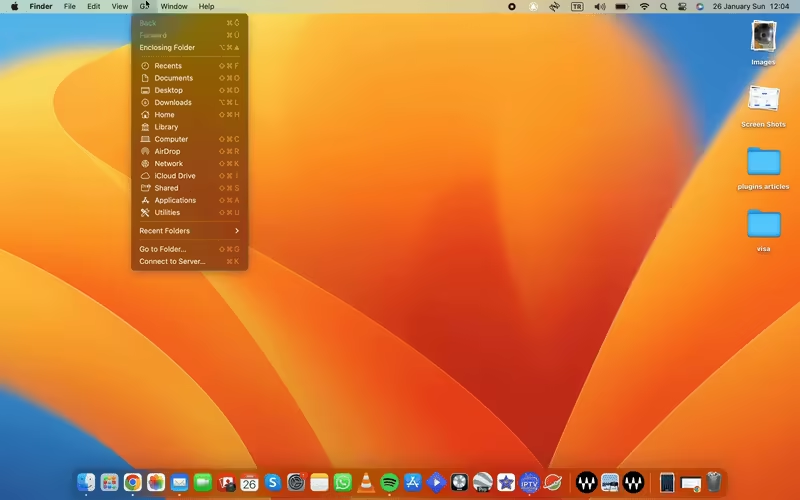
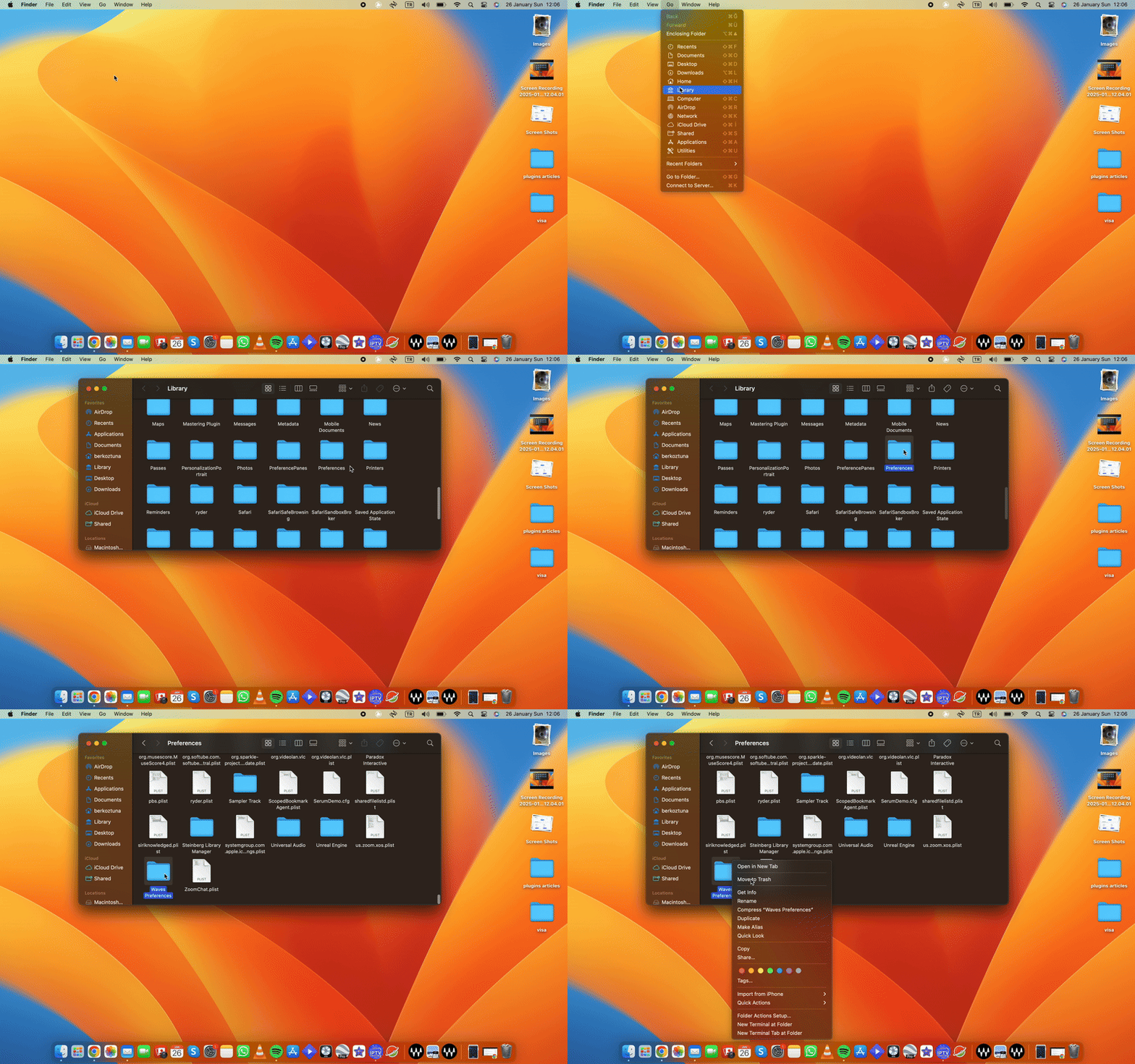
The first thing you have to do is go to the Library and then find the Caches folder. Click and open the Caches to find the Waves folder and delete it.
The second thing is to go to the Library again and, this time, find the Preferences folder. There, find and delete the Waves Preferences folder.
Now, relaunch Pro Tools, and if it asks to localize the Waves plugins, just locate them where you have them. By default, they are in Macintosh HD – Applications – Waves – Plug-Ins V15.
This hard rescan method usually does the trick. It’s like clearing out the cobwebs in your DAW’s brain so it can find your plugins properly.
Step 4: Check Plugin Compatibility
So, you must know that not every Waves plugin will work with every version of Pro Tools. Some plugins only work with specific Pro Tools versions, so you have to check your Waves plugins to see if they are in sync with your Pro Tools version.

- How to Check Compatibility
Visit the Waves Compatibility Chart on their website. This handy chart will tell you which versions of Waves plugins are compatible with your Pro Tools version and operating system.
If your plugin version is outdated, you’ll need to upgrade it through Waves Central. Yes, it’s an extra cost, but think of it as upgrading your studio gear to stay current.
- Running Pro Tools on Rosetta (For Mac M1/M2 Users)
If you’re using an Apple Silicon Mac, you might need to run Pro Tools under Rosetta to ensure compatibility with some Waves plugins. To do this:
-
-
- Right-click the Pro Tools app in Finder.
- Select Get Info.
- Check the box for Open using Rosetta.
- Relaunch Pro Tools.
-
This can often solve plugin loading issues for older Waves versions.
Step 5: Verify Your Sample Rate
Believe it or not, your session’s sample rate could be the culprit. Waves plugins need a compatible sample rate to function properly. For example, some plugins don’t work with rates above 192kHz. If your session is set to an unsupported rate, your plugins might not load.

- How to Adjust Sample Rate
When creating a new session in Pro Tools, check the sample rate settings. Try to go with common rates like 44.1kHz or 48kHz to make sure, that the operation is smooth without issues.
If you’ve already started a session at an unsupported rate, you’ll need to create a new one or change the settings manually.
Step 6: Contact Waves Support
If you’ve tried all of the above and your plugins are still MIA, it’s time to call in the pros. Waves Support is like your studio’s tech team; ready to help you troubleshoot any issues. They can walk you through advanced fixes or even remote into your system to solve the problem.

- How to Contact Waves Support
-
-
- Visit the Waves Support page on their website.
- Submit a ticket with detailed information about your setup, including:
- Pro Tools version
- Waves plugin version
- Operating system
- Be patient; they’re usually quick to respond.
-
Sometimes, even the best troubleshooting requires a little outside help. Don’t hesitate to reach out cause you’ve got a mix to make, after all!
Last Words
Tracking down missing plugins in Pro Tools can feel like chasing your tail, but it’s not impossible. Most of the time, the issue boils down to a simple fix: installing the plugins correctly, activating the licenses, or giving your DAW a fresh rescan.
Well, Pro Tools is a powerful tool, but it can be a bit high-maintenance. So, give it the love and attention it needs by keeping your plugins up-to-date, and ensuring compatibility with your system to keep everything running smoothly.
And if nothing works, then Waves Support is always there to have your back. With years of experience, they are always ready to help you get going by putting your plugins back where they belong, which is your sessions.
Now, go forth and create that masterpiece! With these tips in your toolkit, you’re ready to tackle whatever Pro Tools throws your way. Happy mixing!
