
If you’ve been making music for a while, you’ve probably heard of VST plugins. Today, we will get deep into the topic showcasing you how to use and take advantage of them.
Maybe you’ve even downloaded a few plugins, opened them in your DAW, and then just sat there wondering what to do next. I know the feeling.
Don’t worry as learning how to use VST plugins can feel overwhelming at first with instruments, effects, different formats, installation processes, and DAW compatibility issues. It’s a lot to take in. But when you get more familiar with them, you’ll see it opens the doors of a world of creative possibilities.
In this guide, I’ll walk you through everything you need to know about VST plugins step by step. Think of this as us sitting down for coffee and talking about music production. No overly technical jargon, no unnecessary details, just practical, useful information that will help you make music more effective.
This guide explains what VST plugins are, how they work, how to install and organize them as well as how to use them in your DAW.
And you’ll learn to troubleshoot common issues and get the best sound possible from them. No longer will you second guess or struggle with confusing menus!
What Are VST Plugins?

VST plugins are short for “little magic tricks that turn your DAW into a recording studio.” It provides you a collection full of software like synths, drum machines, and effects without needing the budget (or the space).
VSTs come in 3 flavors:
- VST Instruments (VSTi): These plugins are created to produce different sounds, like synths, pianos and drum machines. It has different versions such as VST2 and VST3.
- VST Effects: These are like pedals or outboard gear such as reverb, EQ, compression, delay, and distortion units in the digital world.
- VST MIDI Effects: These don’t mess with audio directly but manipulate MIDI for arpeggiation, chord generation or weird experimental sequencing.
VST plugins basically take your DAW’s built-in tools and crank them up to 11. You’re no longer limited to whatever comes preloaded as you can expand infinitely (which is awesome, but also slightly dangerous for your wallet).
Where Do I Find Plugins?

Alright, so where do you actually get these things? Good news: they’re everywhere.
If you’re ready to spend some cash, Plugin Boutique is a great place to start. They have tons of plugins, frequent discounts, and even freebies that pop up every now and then.
Another cool option is Splice, which lets you rent-to-own plugins, so instead of dropping a ton of money all at once, you can pay little by little and actually own the plugin when you’re done. Perfect if you’re on a budget.
If you want completely free plugins, check out our free plugins sections or Plugins4Free or KVR Audio. Tons of hidden gems there, and you don’t have to spend a dime. Just be careful; some older ones might not work with your DAW or OS.
I’ll keep it simple, so here are some great free plugins and my favorite paid alternatives:
- EQ: Free: SlickEQ | Paid: FabFilter Pro-Q 2, Waves SSL/API EQs
- Compressor: Free: Molot | Paid: FabFilter Pro-C 2, Slate VMR
- Limiter: Free: Limiter No.6 | Paid: FabFilter Pro-L, Waves L1
- Saturation: Free: Softube Saturation Knob | Paid: FabFilter Saturn
- Distortion: Free: CamelCrusher | Paid: FabFilter Saturn
- Chorus: Free: TAL-Chorus | Paid: Boss CE-2 pedal (for guitar)
- Delay: Free: Valhalla Echo | Paid: iZotope DDLY, Waves SuperTaps 6
- Reverb: Free: TAL Reverb II | Paid: FabFilter Pro-R, Waves IR-1
- Autotune: Free: Melda MAutoPitch | Paid: Revoice Pro, Antares Auto-Tune
- Synth: Free: Synth1, Helm | Paid: Serum, u-he Diva
VST Plugin Formats and Compatibility

Well, not every VST plugin works with every DAW. It’s like trying to fit an Xbox disc into a PlayStation.
The most common format is VST (duh), and it runs on both Windows and macOS. But there are a couple of others to keep in mind:
- Audio Units (AU): Apple’s version of VSTs, used in Logic Pro and GarageBand.
- AAX (Avid Audio Extension): Only for Pro Tools users, because Avid loves doing its own thing.
Some plugins come in all three formats, while others are picky and only support one. Before you download anything, double-check that it actually works in your DAW, because there’s nothing worse than getting hyped for a new synth, only to realize it won’t even load.
How to Install VST Plugins?

Installing a VST should be simple. Should be. But if you’ve ever tried installing a plugin, only to have it disappear into the void, you know things don’t always go smoothly.
First rule: Download from legit sources.
If you’re grabbing a free plugin, make sure it’s from a reputable site. If it’s paid, you’ll probably have to deal with a license manager (because companies love making things complicated).
Windows vs. Mac installs
- Windows users, you’re usually dealing with an .exe installer, but some plugins just give you .dll or .vst3 files that you have to manually drop into C:\Program Files\VSTPlugins or C:\Program Files\Common Files\VST3.
- Mac users, you’ll either have a .dmg installer or a simple drag-and-drop situation where you place the plugin files in /Library/Audio/Plug-Ins/VST3.
Once that’s done, fire up your DAW, go to the plugin settings, and rescan your folders. If your DAW can’t find it, double-check that you actually installed it in the right spot (trust me, I’ve had way too many “WHERE IS MY PLUGIN?!” moments).
Loading and Using VST Plugins in Your DAW
Once everything’s installed, it’s time to make some noise.
- VST Instruments go on a MIDI track. Open your DAW’s plugin browser, find your new synth, and drag it in. If you have a MIDI keyboard, even better, you can start jamming right away.
- VST Effects work on audio tracks or send/return channels. Want to drown your vocals in reverb? Just drop a reverb plugin onto the track and tweak it until it sounds heavenly (or ridiculously over-the-top, no judgment).
If your plugin isn’t showing up, check your DAW’s preferences. Some DAWs need a manual rescan to detect new plugins. And sometimes, plugins install in weird places, so if you don’t see it, hunt it down like a detective.
Organizing Your VST Plugins

If you’re just starting out, plugin organization doesn’t seem like a big deal. But once you’ve collected way too many plugins (which will happen), finding the right one turns into a scavenger hunt.
Another feature I like is that most DAWs allow you to create custom plugin folders or categories. You can categorize them as you want, so that you’re not scrolling through 200+ random plugins every time you need a reverb. Also, you can mark them as favorites in DAWs like FL Studio and Ableton Live, so you always have your go-to tools within reach
If your DAW doesn’t have a built-in way to organize plugins, you can manually sort them into folders inside your VST directory. Just be careful: moving plugin files after installation can break them. (I learned this the hard way.)
The bottom line is that a little organization now saves you a ton of frustration later. Instead of digging through an endless list of plugins, you can focus on what actually matters: making music.
Getting the Best Sound from Your VST Plugins
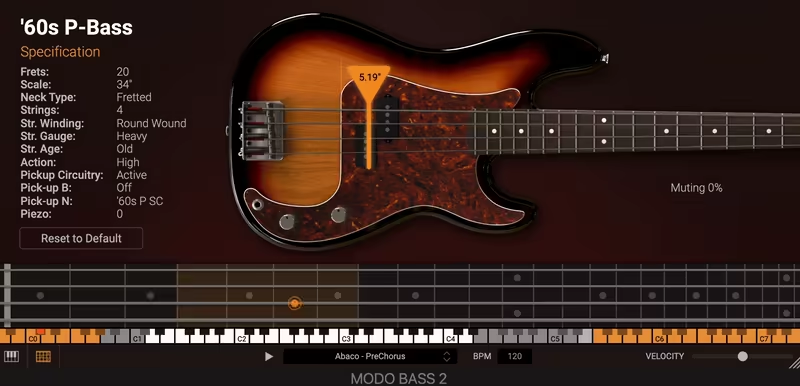
So, you’ve got a killer collection of VST plugins,awesome. But here’s the thing: just owning great plugins won’t magically make your mixes sound pro. It’s how you use them that makes the difference.
A lot of people just load up a plugin, scroll through presets, and call it a day. But if you really want to get the best out of your plugins, you need to tweak, experiment, and actually understand what each control does.
- Learn the Basics (Yes, Even If It’s Boring)
I know, I know,diving into manuals and tutorials isn’t the most exciting thing ever. But taking the time to understand how a synth’s oscillators, filters, and envelopes work? Game changer. Same with effects like compressors and EQs, knowing what attack, release, and threshold actually do will help you dial in the perfect settings instead of just guessing.
- Presets: A Blessing and a Trap
Presets are great for inspiration, but they’re not the finish line. Think of them like a pizza base, you wouldn’t just eat plain dough, right? Load a preset, then tweak it. Adjust the filter, play with the reverb, and mess with the LFO speed. The more you tweak, the more unique and “you” your sound will be.
- Gain Staging: Keep It Clean
Ever loaded a plugin and thought, why does this sound like garbage? Chances are, your levels are off. Some plugins sound best when the input volume is just right, too hot, and you get nasty distortion, too quiet, and they don’t react properly. If a plugin has input and output controls, use them to balance the levels. A clean mix starts with proper gain staging.
- Get Weird with It
The best way to learn a plugin? Experiment. Automate parameters, layer effects, and stack plugins in weird ways. Try running a synth through a distortion meant for guitars. See what happens when you automate an EQ filter to sweep through a vocal. The more you mess around, the more happy accidents you’ll discover.
Troubleshooting Common VST Plugin Issues
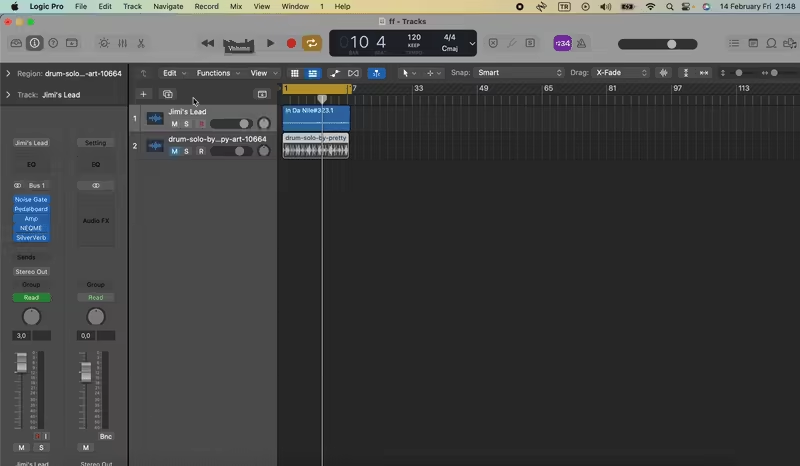
No matter how smooth your setup is, something will break at some point. Plugins disappear, DAWs crash, CPU gets overloaded… it’s just part of the game. Here’s how to handle it without losing your mind.
- Missing Plugins?
If your DAW isn’t detecting a plugin, first make sure it’s in the right folder. Then, check if your DAW has a “rescan” button in the plugin settings (most do). If it still doesn’t show up, try restarting your DAW; sometimes, that’s all it takes.
- Plugin Keeps Crashing?
First step: update it. Developers release fixes for a reason. If it’s still crashing, see if your DAW has a sandbox mode (some do) to isolate the plugin and stop it from taking down your whole session. If an update made things worse, try rolling back to an older version.
- CPU Overload?
Some plugins (looking at you, heavy synths and reverb monsters) can eat up a ton of CPU. If your project starts lagging:
-
-
- Increase the buffer size in your DAW’s audio settings
- Freeze or bounce tracks to free up the CPU
- Lower oversampling or turn on “eco mode” if the plugin has one
-
A little tweaking can keep your session running smoothly without sacrificing sound quality.
Final Thoughts
Mastering VST plugins takes time, but once you get the hang of it, they become one of the most powerful tools in your setup. Whether it’s for mixing, sound design, or wild experimental effects, plugins open up endless creative possibilities.
So, in order to learn more about these little magic tricks called plugins, simply follow the steps in the article and experiment with them.
-
-
- Stay organized: Too many plugins = decision paralysis. Focus on a few great ones and really learn them
- Experiment: The best sounds come from playing around
- Troubleshooting is part of the process: Even pros deal with plugin issues. Don’t let it slow you down
-
At the end of the day, plugins are just tools. Your creativity is what makes the magic happen. Now go make some noise!
